
Your task/starting position
Create a new supplier
- Click on the Procurement button.
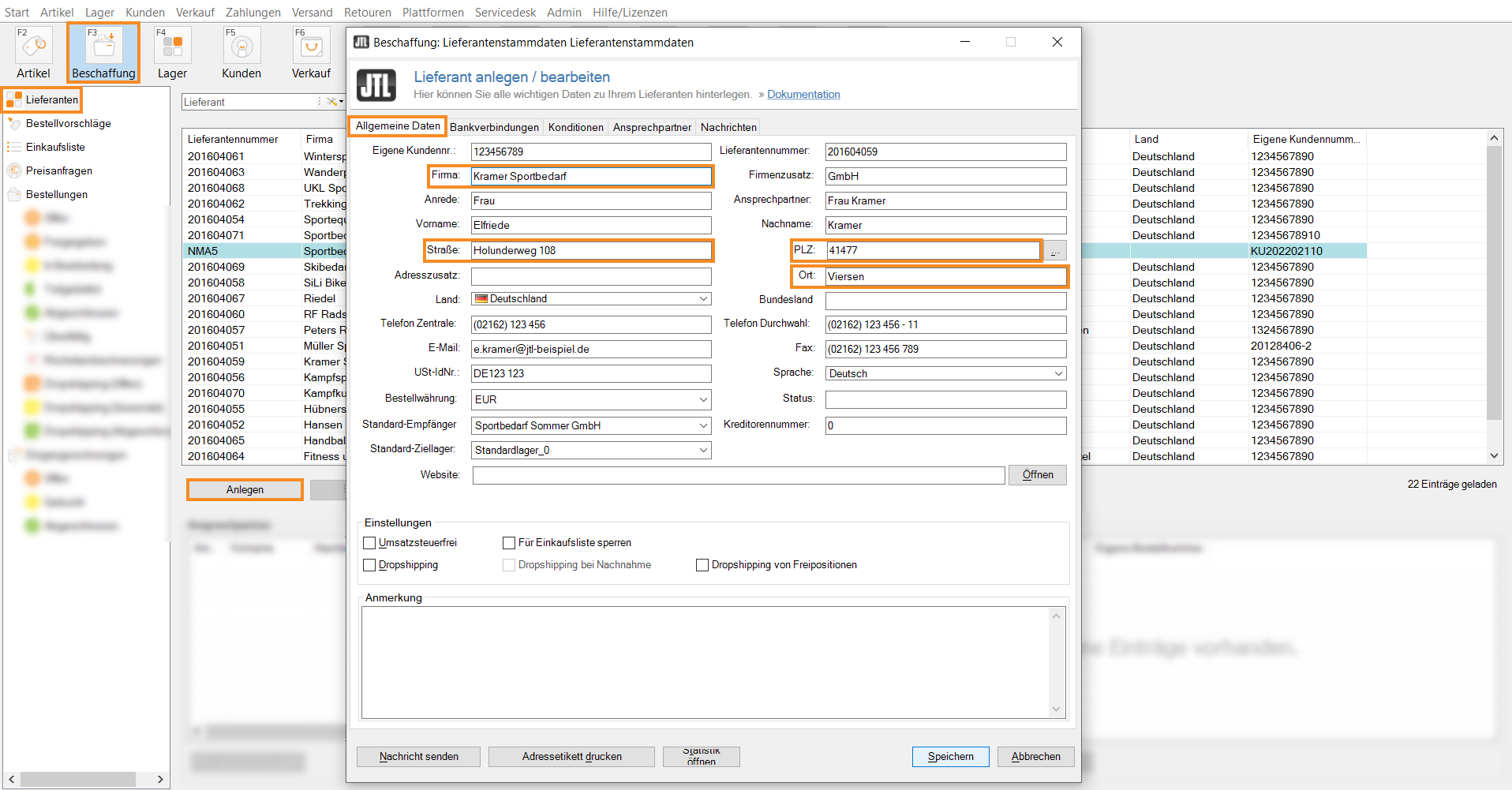
- In the category tree on the left, select the Suppliers category and click on the Create button. The Create/Edit Supplier dialog box opens.
- In the General tab, enter all important information about your supplier. You must enter at least the company, street, zip code and city in order to be able to save the supplier data set.
Optional data
Own customer no. : If your supplier has assigned you a customer number, you can enter it in the Custom Customer ID field.
Supplier number: In this field, you can enter the number of your supplier.
E-mail: Enter an email address in this field to send emails and automatic messages to your supplier from various areas in JTL-Wawi.
Note: You can enter further information in this text box.
Bank details tab: In this tab, you add your supplier's bank details.
Create and edit dropshipping suppliers
You want to create a dropshipping supplier that delivers orders even when the customer pays cash on delivery.
- Create a new supplier, as described under Create a new supplier, or select an existing supplier in the overview and click on the Edit button. The supplier master data opens.
- On the General tab, activate the Dropshipping checkbox.
- Activate the dropshipping for cash on delivery check box.
- Switch to the Conditions tab. In the Allowed Delivery Countries section, you can select which countries the supplier offers dropshipping for. Activate the checkboxes for the required countries.
- Confirm your details by clicking Save. The following query window opens:
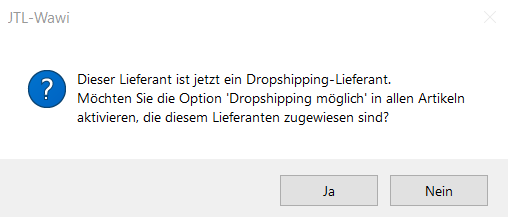
- Select Yes or No:
Yes: All items assigned to this supplier are enabled for dropshipping.
No: You must mark the items as available via dropshipping in a separate step. Use this option if you want to manage your dropshipping network more consciously and, for example, only want to deliver selected products from the supplier via dropshipping. Read more about this topic here.
You can now award dropshipping orders to the supplier. In addition, you can also place dropshipping orders to the supplier where your customer has chosen the cash on delivery payment method.
Related topics
- Delivery via dropshipping
- Automate dropshipping
- Add a contact person for a supplier
- Save conditions and delivery terms for a supplier
- Save bank details for a supplier
- Search and filter suppliers
- Delete suppliers
- Activate items for dropshipping
- Assigning suppliers to an item
- Detailed description: Item master data — suppliers
Comments
0 comments
Please sign in to leave a comment.